[!NOTE] This article covers Google Tag Manager (GTM) implementations. If you are implementing Consent Mode manually via
gtag.js(without GTM), check out our manual gtag fix guide.
If you've been auditing your Google Consent Mode v2 setup, you might have noticed a strange string of characters in your network requests or URLs, starting with &gcd=.
This parameter is the heartbeat of Consent Mode. It tells Google exactly what the user's consent status is and how those signals were generated.
But there’s one specific character that should set off alarm bells: the lowercase "l" (L).
What does the "l" in GCD mean?
In the world of GCD (Google Consent Default/Data), every signal (like ad_storage or analytics_storage) is represented by a letter.
- 'p' or 'r': Consent was explicitly denied.
- 'q' or 'm': Consent was explicitly granted.
- 'l': The signal was never set.
When you see something like 13l3l3R2l5l1, it means Google has received no information about the user's consent choice for those specific categories.
Why this is a problem
If Google receives an "l" signal, it treats the status as "unset". While this might seem safer than "denied", it's actually worse for your data accuracy.
Without an explicit granted or denied signal, Google cannot accurately apply Conversion Modeling. You lose the benefit of "Advanced" Consent Mode, and your attribution for users who reject cookies (or haven't decided yet) effectively breaks.
3 Common Causes in Google Tag Manager
If you are using GTM and seeing "l" signals, it’s usually down to one of these three implementation errors:
1. Your CMP Template is outdated
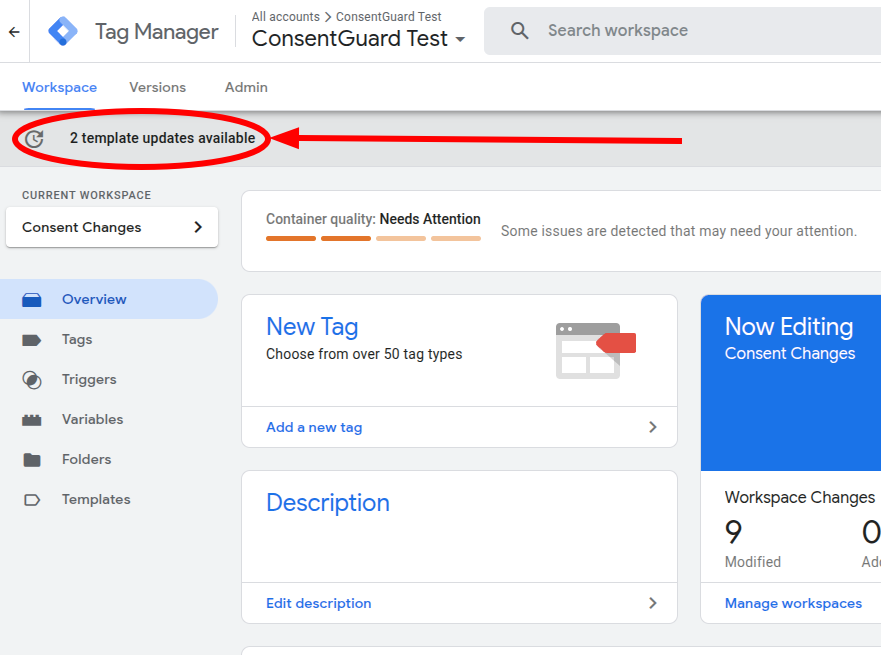
Many GTM Community Templates for popular CMPs (like Cookiebot, OneTrust, or CookieYes) handle Consent Mode automatically. However, if you are using an old version of a template or a manual script that hasn't been updated for v2, it might not be sending the new required signals (ad_user_data and ad_personalization), leaving them as "l".
2. Missing Default Consent Configuration
For Google Consent Mode v2 to work correctly, a default state must be SET before any tags fire. Some GTM implementations rely solely on the CMP to send an update command. If the default command is missing entirely, Google tags will fire with "l" (unset) signals because they don't have a starting point.
[!NOTE] Even if you plan to grant consent to everyone by default (not recommended in the EU), you still need to explicitly send that
defaultcommand to avoid the "l" signal.
3. Tags are firing before "Consent Initialization"
This is the most common cause. Google Consent Mode requires a default command to be sent before any other tags fire.
In GTM, there is a specific trigger called "Consent Initialization - All Pages". If your CMP (Consent Management Platform) tag or your manual consent setup is firing on "All Pages" (Page View) instead of "Consent Initialization", your Google tags might fire first, resulting in an "l" signal because the default consent hasn't been established yet.
How to Fix it
- Update your CMP Template: Before changing any settings, check if there is an update available for your CMP template in the GTM gallery. New versions often include fixes for v2 signals and firing order.
- Use the correct trigger: Ensure your CMP tag (or your Consent Default tag) is triggered on Consent Initialization - All Pages.
- Check your defaults: Whether you use a CMP template or a manual tag, ensure all four v2 signals are included in your default configuration:
ad_storage,analytics_storage,ad_user_data, andad_personalization. - Check for duplicate implementations: Make sure you aren't trying to set consent both in the source code of the site or via a plugin (eg. in WordPress) AND via GTM, as they can conflict and leave signals in an unset state.
[!TIP] To test this: Right-click on your website, select View Page Source, and search (Ctrl+F or Cmd+F) for
gtag. If you see agtag('consent', ...), you may have a conflict.
How to Verify with ConsentGuard
The easiest way to catch these "l" signals is to run an automated audit.
In your ConsentGuard report, we highlight these as "Invalid Google Consent Data" violations.
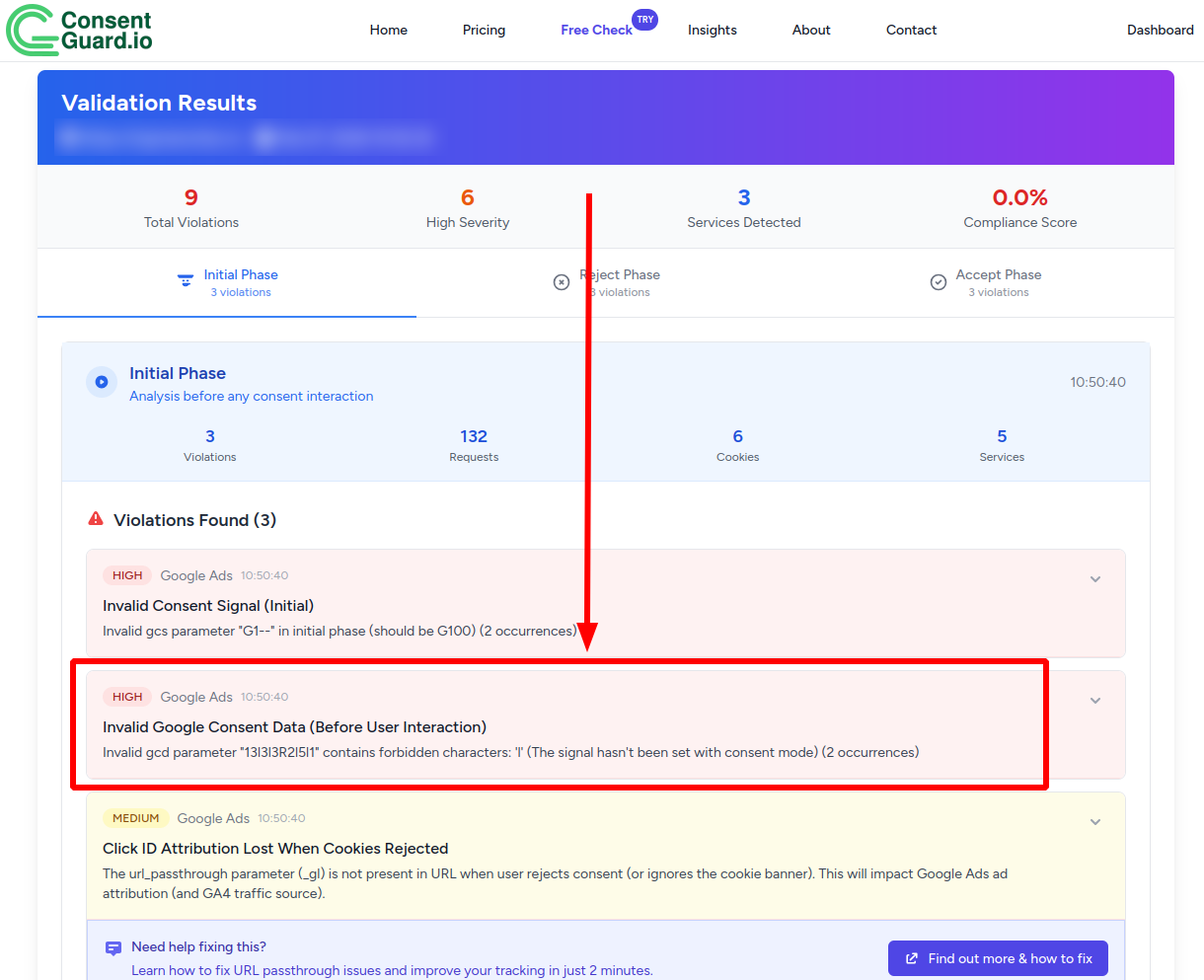
If you see this in your report, it’s a clear sign that your GTM configuration is skipping the critical "default" consent step.
Summary
The "l" in GCD is a "tracking dead zone." It means your tags are firing, but they are doing so without any consent context. By moving your CMP tag to the "Consent Initialization" trigger and ensuring your default settings are correctly mapped in GTM, you can fix this in minutes and restore the integrity of your ad attribution.